blob: 8fb11be6c92c64c4436778a8b18fc0b38a831f4a (
plain) (
blame)
1
2
3
4
5
6
7
8
9
10
11
12
13
14
15
16
17
18
19
20
21
22
23
24
25
26
27
28
29
30
31
32
33
34
35
36
37
38
39
40
41
42
43
44
45
46
47
48
49
50
51
52
53
54
55
56
57
58
59
60
61
62
63
64
65
66
67
68
69
70
71
72
73
74
75
76
77
78
79
|
# DiscordToXIV - Help
Welcome. This mini-guide will help you get started with DiscordToXIV.
---
## 1. Set up BetterDiscord
This plugin requires a Discord client with BetterDiscord so that Dalamud can communicate with it. Follow the instructions on their website, it'll patch into your existing Discord client.
[BetterDiscord Website](https://betterdiscord.app/)
---
## 2. Download and install the BetterDiscord plugin
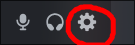
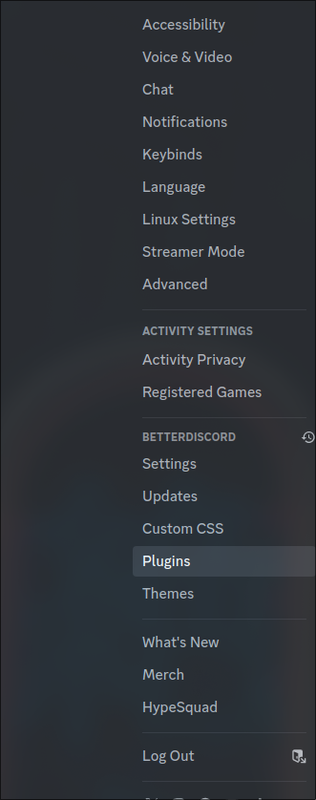
Install the BDFireToWebsocket plugin. This is required so Dalamud knows when you get a new message. Download the .js file from the link below and put it in your BetterDiscord plugins folder. You can access this in your BetterDiscord client by going to Settings -> Plugins -> Open Plugin Folder.
[BDFireToWebsocket Plugin](https://github.com/pinapelz/BDFireToWebsocket/blob/7b2752d529cf3c6b5115c200aeb7b6f684ce807b/BDFireToWebsocket.plugin.js)
[](https://postimg.cc/ppVj9yV8)

---
## 3. Configure BDFireToWebsocket Plugin
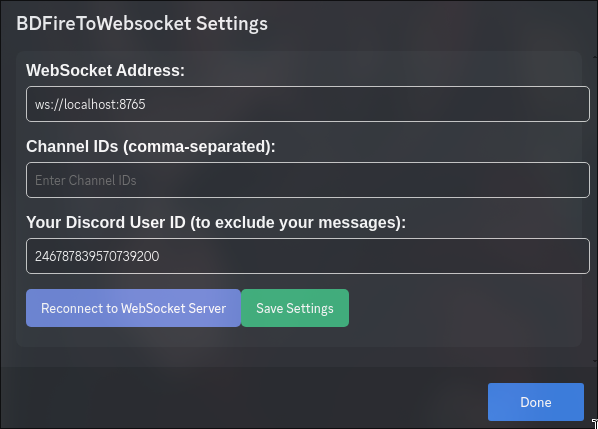
Click on the settings icon for the BDFireToWebsocket plugin in BetterDiscord in the plugins menu.
**Websocket Address:**, you can leave it as the default unless you know what you're doing.
**Channel IDs:** controls which messages are sent to Dalamud. I suggest leaving this empty and then filtering which channels you want from the Dalamud plugin instead.
**User ID:** Add your own User ID so that messages you send get filtered out! (Otherwise, you'll see your own messages in-game)
You can get your User ID by right-clicking on your name anywhere in Discord and clicking 'Copy ID'
[](https://postimg.cc/zHFfzwHM)
---
## 4. Configure DiscordToXIV Plugin
Head back into the game and run `/pdiscordtoxiv config`. This will open the plugin settings window where you can configure the plugin to your liking.
- You'll need to set **nicknames** for each chat channel so their names don't show up as a bunch of numbers.
- You can get the channel ID by right-clicking on any server channel or even DM channel and clicking 'Copy Channel ID'.
Ex. `#general-ffxiv -> 12345564323454`.
[](https://postimg.cc/wtRTyYsD)
(Optional) You can also set up a **Discord Auth Token** if you want to send messages from the game to Discord. I won't get into how to get this token since it's slightly more risky, but you can find guides online. If you do set it up, I'll have instructions on how to use it later down.
---
## 5. Good to GO!
Almost done now! Run `/pdiscordtoxiv`. You should see a message in chat letting you know that the server is running.
Head back into your BetterDiscord plugins and click the settings icon for BDToFireWebsocket again. Click 'Reconnect to Websocket Server'.
You should now see a message in-game letting you know that the connection is successful!
---
## (Optional) 6. Sending Discord messages
If you set up the Discord Auth Token, you can now send messages from the game to Discord.
1. First, you'll need to **focus** on a chat channel by typing `/pdtxset <channel_id>`. You must use the numerical channel ID here, not a nickname.
2. Then you can send messages by typing `/pdtxsend <message>`. This will send the message to the focused channel.
My suggestion for using this is to set up different **macros** to focus on different channels. This will make it easier to send messages to different channels without having to type the channel ID each time.
|